Notepad keyboard shortcuts: the full list
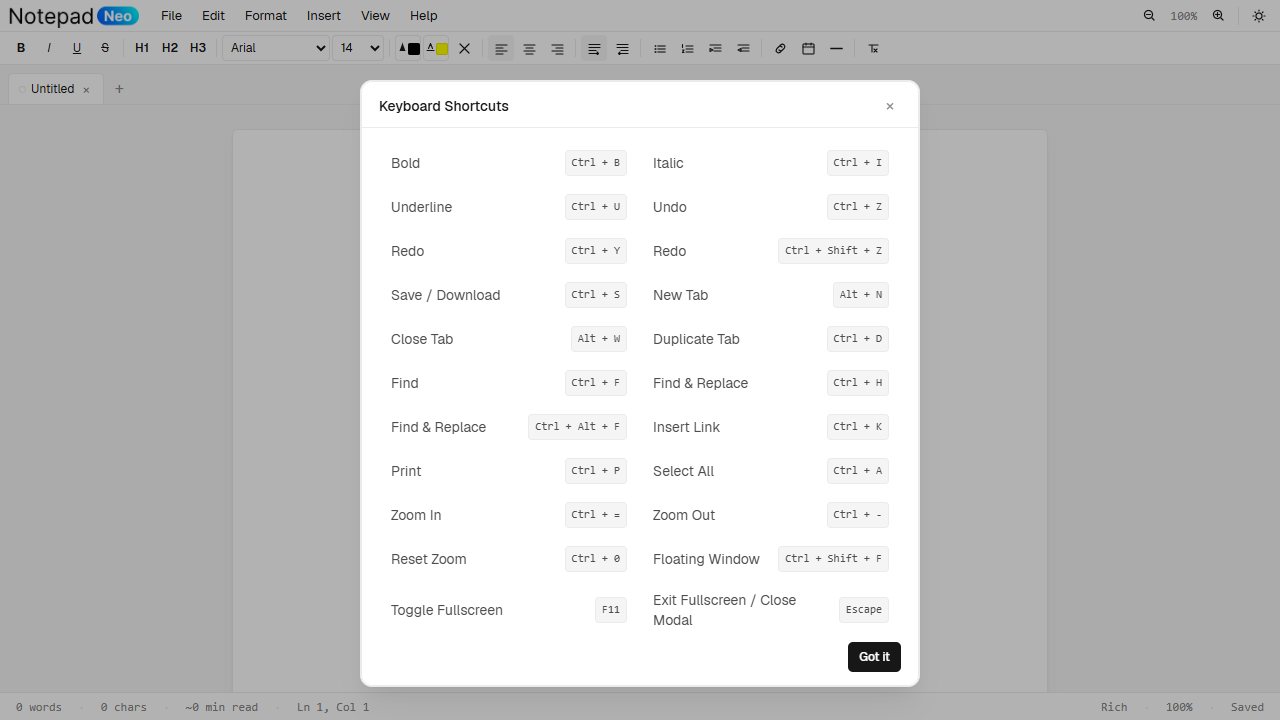
Keyboard shortcuts are the fastest way to write and format notes without reaching for the mouse. Most of them match Microsoft Word and Windows Notepad, so they will feel familiar. You can open this list inside the editor at any time with Ctrl+/ or Help → Keyboard Shortcuts.
Formatting shortcuts
| Action | Shortcut |
|---|---|
| Bold | Ctrl+B |
| Italic | Ctrl+I |
| Underline | Ctrl+U |
| Insert a link | Ctrl+K |
| Undo | Ctrl+Z |
| Redo | Ctrl+Y |
Tabs and windows
| Action | Shortcut |
|---|---|
| New tab | Alt+N |
| Close tab | Alt+W |
| Floating window (stays on top of other apps) | Ctrl+Shift+F |
| Full screen | F11 |
Find, save and print
| Action | Shortcut |
|---|---|
| Find and replace | Ctrl+F |
| Save / download as .txt | Ctrl+S |
| Print or save as PDF | Ctrl+P |
| Show all shortcuts | Ctrl+/ |
Shortcuts on a Mac
On macOS, use ⌘ wherever this list says Ctrl and ⌥ wherever it says Alt. The list inside the editor switches to the Mac keys by itself.
No keyboard? Use the toolbar
Every shortcut also has a button or a menu item, so the editor works fully on a phone or tablet. To try them, open the free online notepad, or read what an online notepad is if you are new to it.
Quick answers
How do I see the shortcuts inside the notepad?
Press Ctrl+/ or open Help → Keyboard Shortcuts.
Do the shortcuts work on a Mac?
Yes. Use ⌘ in place of Ctrl and ⌥ in place of Alt.
Free, no sign-up, and your notes stay on your device.
Open the free online notepadMore guides
- How to recover unsaved notes Where an unsaved note really lives, how to get it back in Notepad Neo and in Windows Notepad, and how to stop losing text.
- How to save notes as a Word document or PDF Export a note to .docx or PDF in two clicks, keep the formatting, and convert an old .txt file the same way.
- What is an online notepad, and how do you use one? A plain explanation, how it compares with Notepad and Google Docs, and when an online notepad is the right tool.